
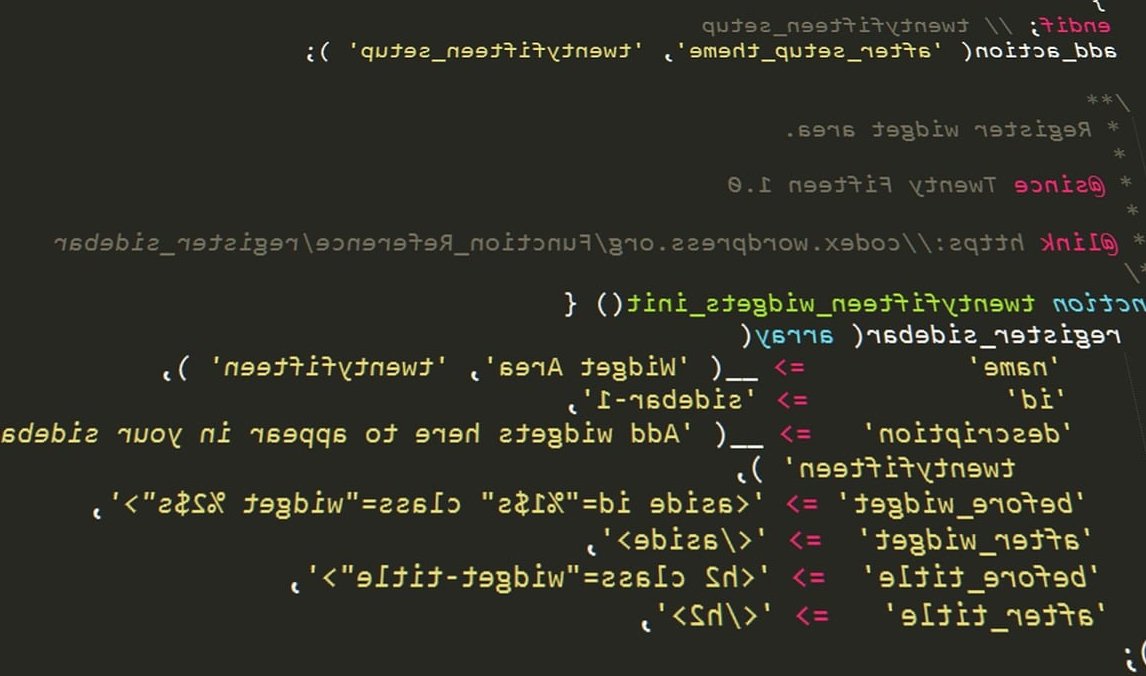
If you are a developer building a fast, lean WordPress site, the last thing you want is another bloated SEO plugin loading scripts on every page just to output a few lines of JSON-LD. The good news: you can add schema markup to WordPress without a plugin by injecting structured data directly through your theme’s functions.php file.
In this guide, we will walk through a practical, copy-paste-ready method to output clean JSON-LD schema for articles, products, and local business pages, with conditional logic so each page gets only the schema it needs.
Why Skip the Plugin?
Plugins like Yoast, RankMath or Schema Pro are great for non-technical users, but they come with trade-offs:
- Performance overhead: extra PHP execution, database queries and frontend assets.
- Limited control: you are stuck with the schema structure the plugin chooses.
- Conflict risk: multiple plugins often output duplicate or conflicting schema.
- Bloat: you load a 2 MB plugin to print 30 lines of JSON.
By writing your own schema, you keep full ownership of the output, the validation, and the maintenance.

Before You Start: Use a Child Theme
All code below should go into your child theme’s functions.php, not the parent theme. Otherwise, your changes will be wiped on the next theme update. If you do not have a child theme yet, create one before continuing.
The Core Hook: wp_head
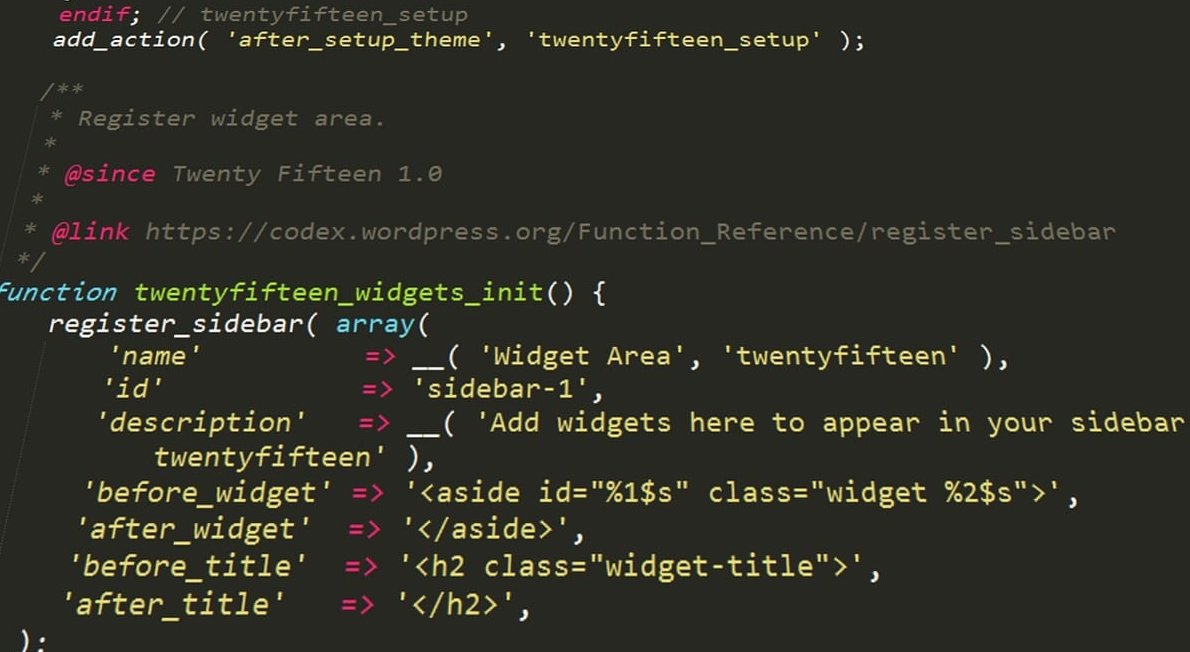
Schema in JSON-LD format should be placed inside the <head> of the document. WordPress provides the wp_head action hook for exactly this purpose.
Method 1: Add Article Schema for Blog Posts
This snippet detects when a single post is being viewed and outputs an Article schema with the title, author, dates, featured image and canonical URL.
add_action('wp_head', 'wv_inject_article_schema');
function wv_inject_article_schema() {
    if (!is_single() || get_post_type() !== 'post') return;

    global $post;
    $author_name = get_the_author_meta('display_name', $post->post_author);
    $image = get_the_post_thumbnail_url($post->ID, 'full');

    $schema = array(
        '@context' => 'https://schema.org',
        '@type'    => 'Article',
        'headline' => get_the_title($post),
        'description' => get_the_excerpt($post),
        'image'    => $image ? $image : '',
        'author'   => array(
            '@type' => 'Person',
            'name'  => $author_name
        ),
        'publisher' => array(
            '@type' => 'Organization',
            'name'  => get_bloginfo('name'),
            'logo'  => array(
                '@type' => 'ImageObject',
                'url'   => get_site_icon_url()
            )
        ),
        'datePublished' => get_the_date('c', $post),
        'dateModified'  => get_the_modified_date('c', $post),
        'mainEntityOfPage' => get_permalink($post)
    );

    echo '<script type="application/ld+json">' . wp_json_encode($schema, JSON_UNESCAPED_SLASHES) . '</script>' . "\n";
}
Method 2: Add Product Schema (WooCommerce or Custom)
For e-commerce, the Product schema unlocks rich results with price, availability and ratings. Here is a version that works for WooCommerce products:
add_action('wp_head', 'wv_inject_product_schema');
function wv_inject_product_schema() {
    if (!function_exists('is_product') || !is_product()) return;

    global $product;
    if (!is_object($product)) {
        $product = wc_get_product(get_the_ID());
    }
    if (!$product) return;

    $schema = array(
        '@context'    => 'https://schema.org',
        '@type'       => 'Product',
        'name'        => $product->get_name(),
        'description' => wp_strip_all_tags($product->get_short_description() ?: $product->get_description()),
        'sku'         => $product->get_sku(),
        'image'       => wp_get_attachment_url($product->get_image_id()),
        'brand'       => array(
            '@type' => 'Brand',
            'name'  => get_bloginfo('name')
        ),
        'offers' => array(
            '@type'         => 'Offer',
            'price'         => $product->get_price(),
            'priceCurrency' => get_woocommerce_currency(),
            'availability'  => $product->is_in_stock() ? 'https://schema.org/InStock' : 'https://schema.org/OutOfStock',
            'url'           => get_permalink($product->get_id())
        )
    );

    if ($product->get_rating_count() > 0) {
        $schema['aggregateRating'] = array(
            '@type'       => 'AggregateRating',
            'ratingValue' => $product->get_average_rating(),
            'reviewCount' => $product->get_review_count()
        );
    }

    echo '<script type="application/ld+json">' . wp_json_encode($schema, JSON_UNESCAPED_SLASHES) . '</script>' . "\n";
}
Method 3: Add Local Business Schema
If your client is a local business, this schema should appear on the homepage and contact page. Replace the placeholder values with the real business data.
add_action('wp_head', 'wv_inject_local_business_schema');
function wv_inject_local_business_schema() {
    if (!is_front_page() && !is_page('contact')) return;

    $schema = array(
        '@context' => 'https://schema.org',
        '@type'    => 'LocalBusiness',
        'name'     => 'Web Vitamin',
        'image'    => 'https://webvitamin.sk/logo.png',
        'url'      => home_url(),
        'telephone' => '+421-900-000-000',
        'priceRange' => '$$',
        'address' => array(
            '@type'           => 'PostalAddress',
            'streetAddress'   => 'Hlavna 1',
            'addressLocality' => 'Bratislava',
            'postalCode'      => '81101',
            'addressCountry'  => 'SK'
        ),
        'geo' => array(
            '@type'     => 'GeoCoordinates',
            'latitude'  => 48.1486,
            'longitude' => 17.1077
        ),
        'openingHoursSpecification' => array(
            '@type'     => 'OpeningHoursSpecification',
            'dayOfWeek' => array('Monday','Tuesday','Wednesday','Thursday','Friday'),
            'opens'     => '09:00',
            'closes'    => '17:00'
        )
    );

    echo '<script type="application/ld+json">' . wp_json_encode($schema, JSON_UNESCAPED_SLASHES) . '</script>' . "\n";
}
Comparing Approaches: Plugin vs Manual
| Criteria | Plugin | Manual (functions.php) |
|---|---|---|
| Setup time | 5 minutes | 20 to 60 minutes |
| Performance impact | Medium to high | Negligible |
| Customization | Limited | Total control |
| Maintenance | Auto-updated | Manual updates |
| Conflict risk | High | None |
| Best for | Beginners | Developers, agencies |
Validate Your Schema
Once your code is live, never assume it works. Test it with the official tools:
- Open Google’s Rich Results Test at search.google.com/test/rich-results
- Paste the URL of your post, product or business page.
- Verify the detected schema type and check there are no errors or warnings.
- Cross-check with the Schema.org Validator at validator.schema.org for full spec compliance.

Best Practices for Manual Schema
- Always use conditionals like
is_single(),is_product(),is_front_page()to avoid printing schema on the wrong pages. - Use
wp_json_encode()instead ofjson_encode()for proper UTF-8 and slash handling. - Avoid duplicates: if your theme already outputs schema, deactivate it before adding yours.
- Keep data fresh: tie values to dynamic functions (post meta, ACF fields, WooCommerce methods) so they stay accurate.
- Document your code: a colleague (or future you) needs to know where the schema lives.
Going Further: Use ACF for Dynamic Local Business Data
Hard-coding the address and phone number in functions.php works for one site, but if you build sites for multiple clients, store the values in Advanced Custom Fields options page, then call them with get_field('phone', 'option'). This way the client can update their info without touching the code.
FAQ
Is it safe to add schema markup directly in functions.php?
Yes, as long as you use a child theme and test the code on a staging environment first. A typo in functions.php can break your site, so always keep a backup or use a code editor with PHP syntax checking.
Will Google penalize me for using manual schema instead of a plugin?
No. Google does not care how the JSON-LD is generated. It only checks if the schema is valid, accurate, and reflects the real content on the page.
Can I mix manual schema with an SEO plugin?
It is risky. If both output the same schema type, you create duplicate structured data which can confuse search engines. Either disable the plugin’s schema feature or stick to one method per page type.
Do I need to add schema to every page?
No. Add schema only where it adds value: articles, products, local business pages, FAQs, recipes, events. Generic pages like privacy policy do not need it.
How often should I update my schema code?
Review it once or twice a year, or whenever Google announces changes to supported rich result types. Subscribe to the Google Search Central blog to stay informed.
Final Thoughts
Adding schema markup manually is one of those small developer wins that pays off long term: better performance, cleaner output, total control. Once you have your snippets ready in a private gist, you can drop them into any client project in minutes, no plugin required.
If you would like the Web Vitamin team to audit or implement structured data on your WordPress site, get in touch. We build fast, schema-rich websites that search engines love.